
Watch + Bridge
No Ecosystem Lock-in
Works with B&G, Raymarine, Simrad, and any standard NMEA 2000 (NMEA2000) marine instrument network. Connect your Garmin marine watch without a Garmin chartplotter or GNT 10.

SailorData combines a free Garmin marine watch app with a plug-and-play NMEA 2000 Bluetooth & Wi-Fi bridge. Stream live sailing instruments and polar sail performance from B&G, Raymarine, Garmin or Simrad to your wrist — plus upgrade your boat with a standalone NMEA to Wi-Fi gateway and Victron to NMEA2000 bridge.
SailorData pairs a dedicated Garmin marine watch app (Connect IQ data field) with the SailorData NMEA 2000 Bridge — bringing live sailing telemetry and sail performance to your wrist while adding standalone NMEA 2000 to Wi-Fi gateway and Victron to NMEA2000 features to your boat.
Works with B&G, Raymarine, Simrad, and any standard NMEA 2000 (NMEA2000) marine instrument network. Connect your Garmin marine watch without a Garmin chartplotter or GNT 10.
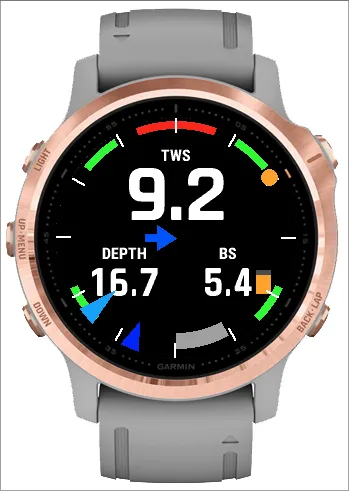
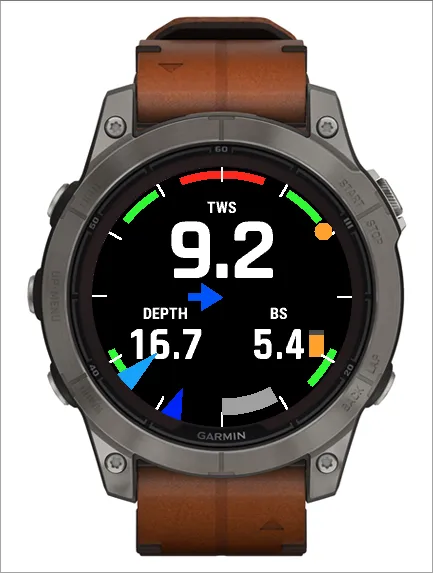
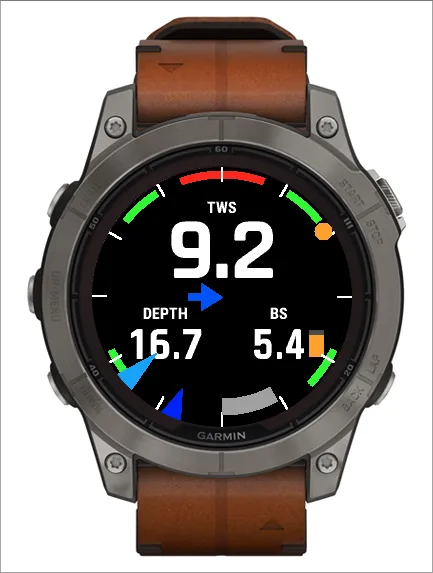
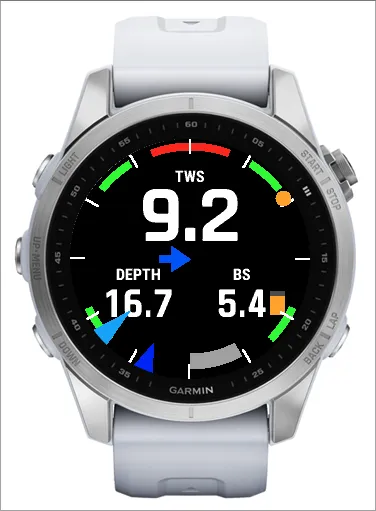
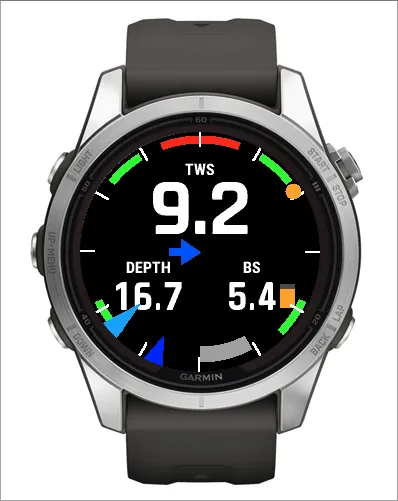
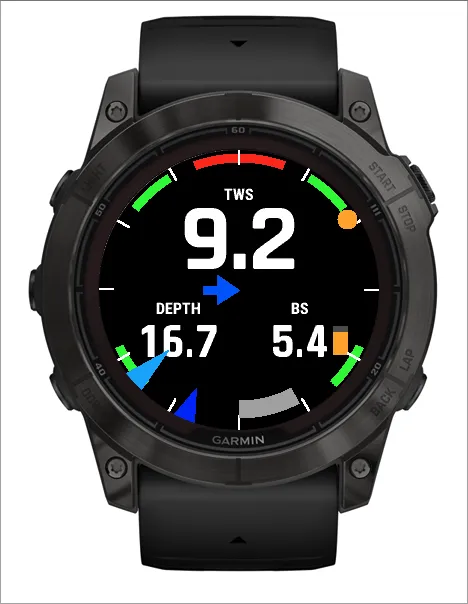
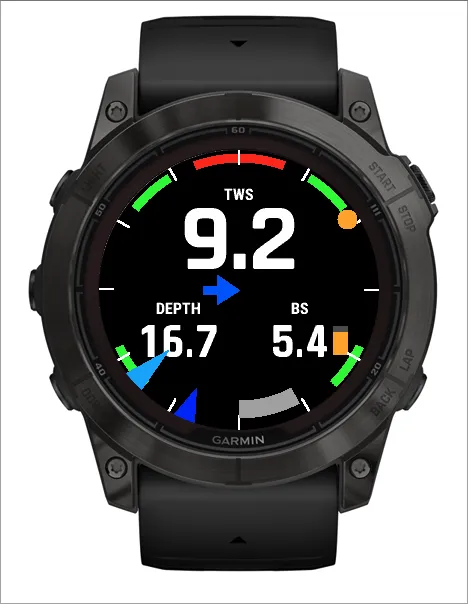
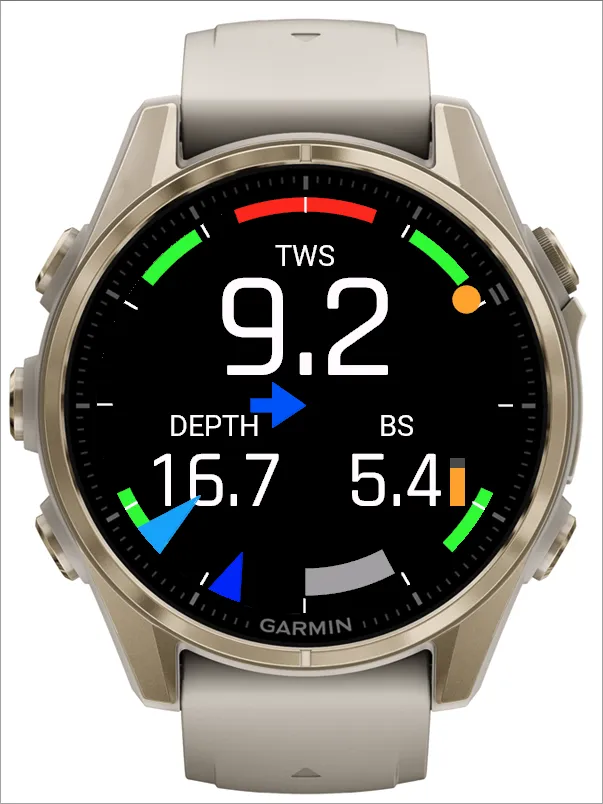
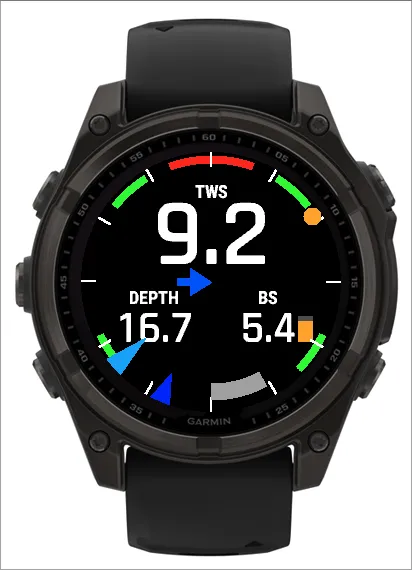
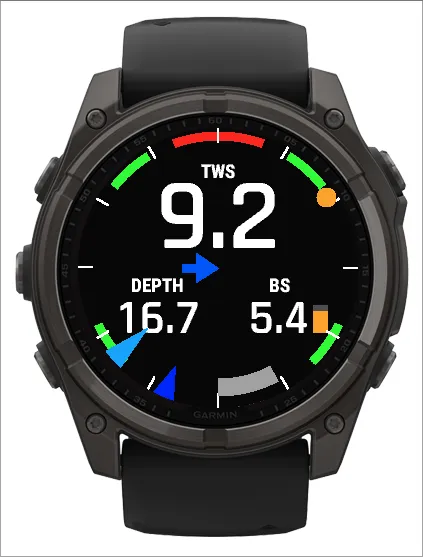
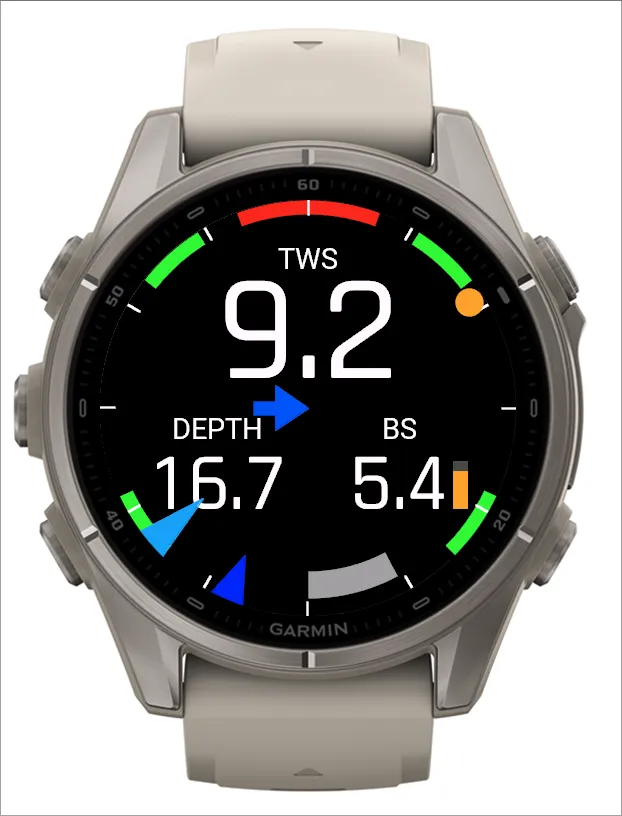
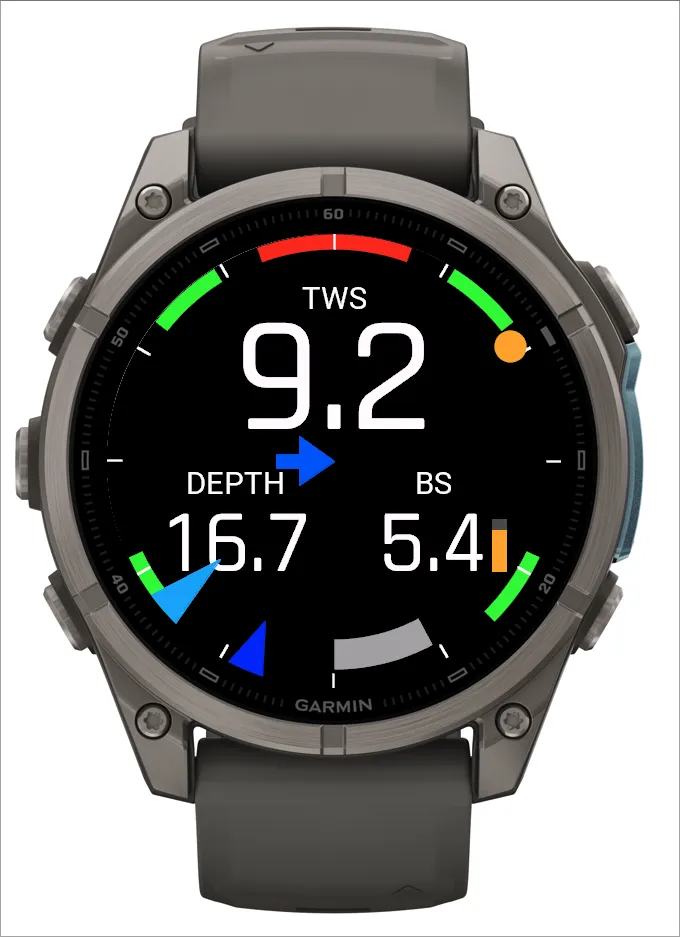
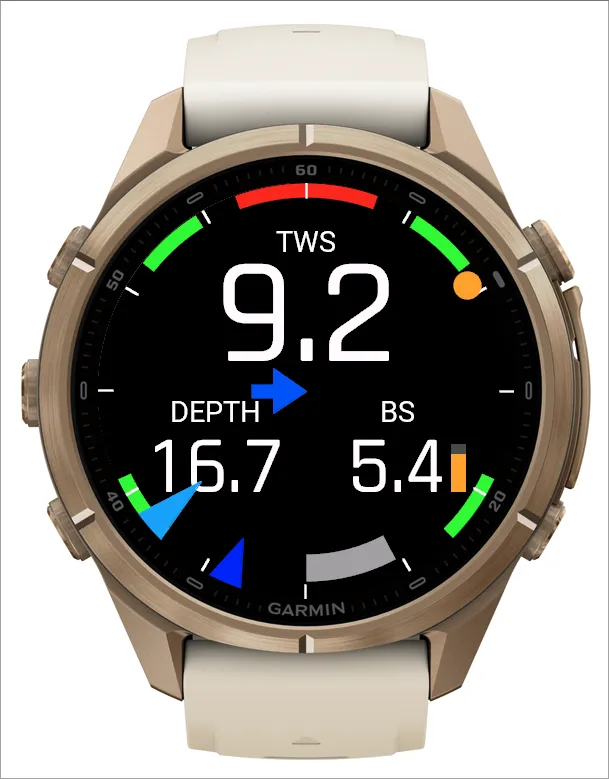
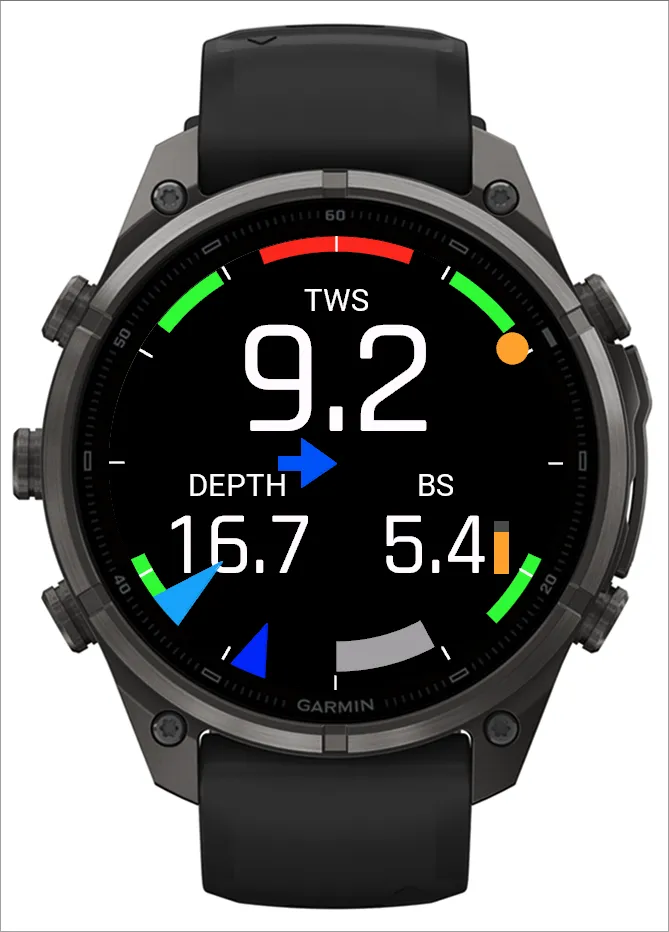
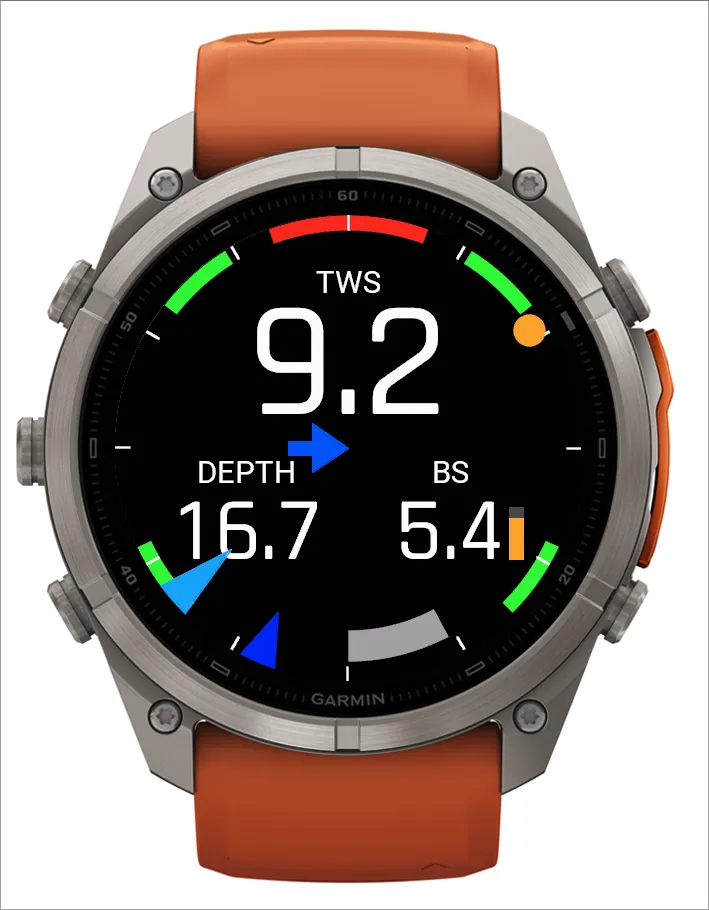
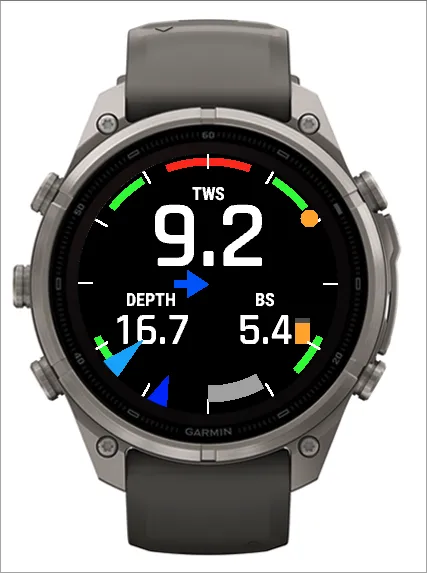
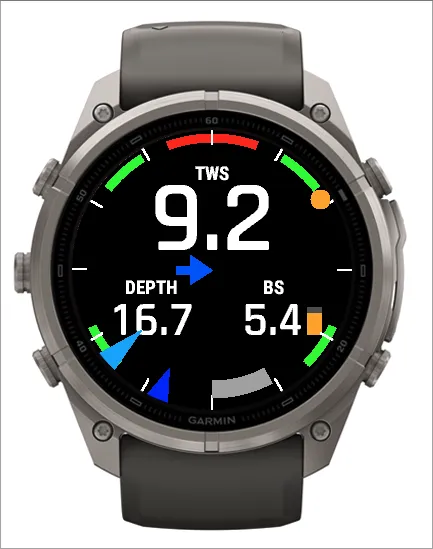
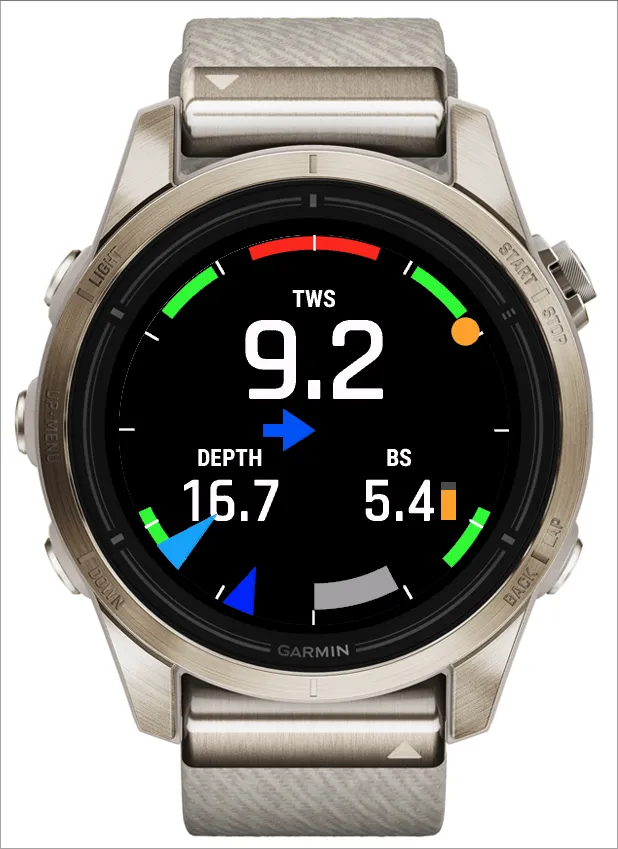
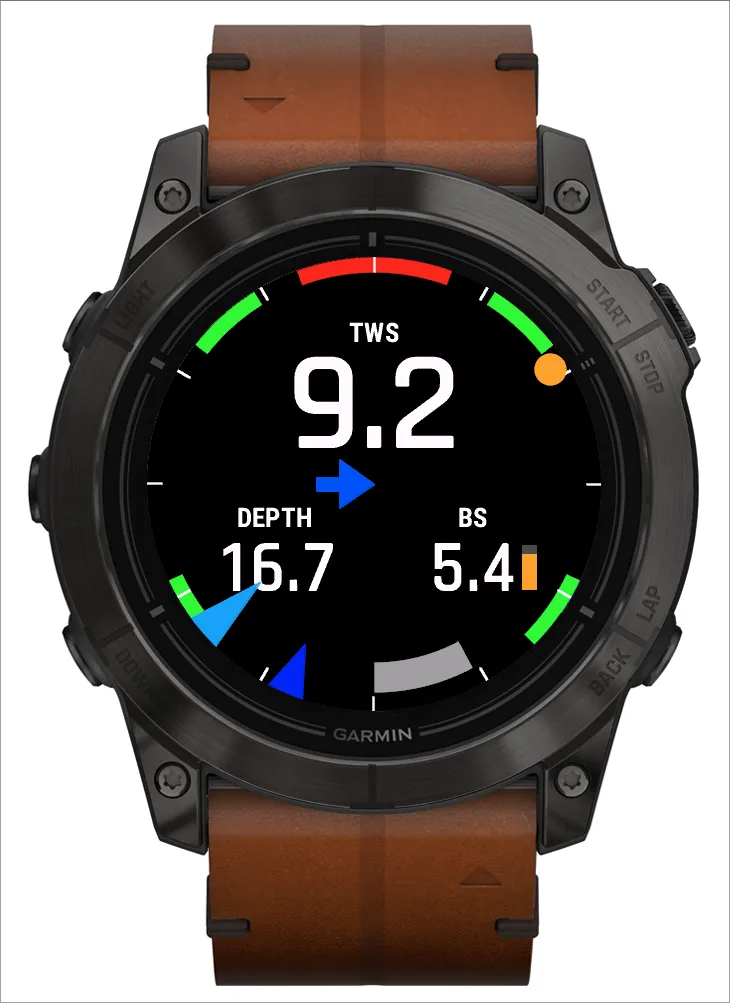
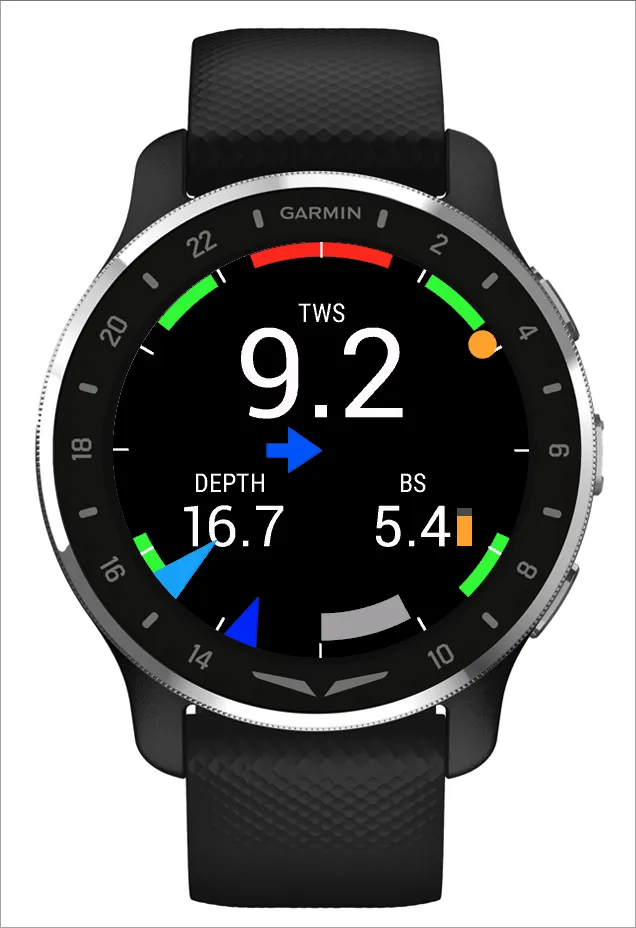
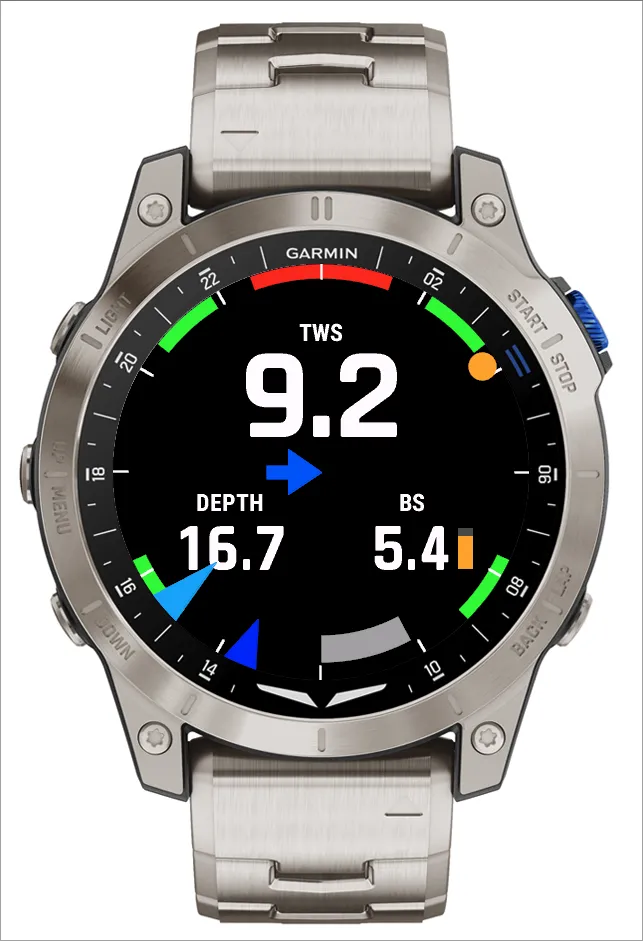
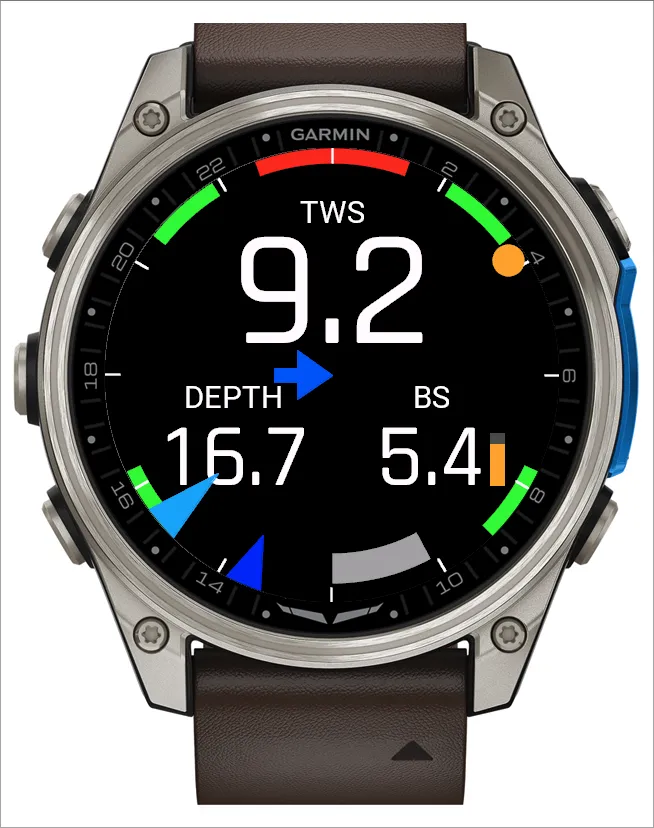
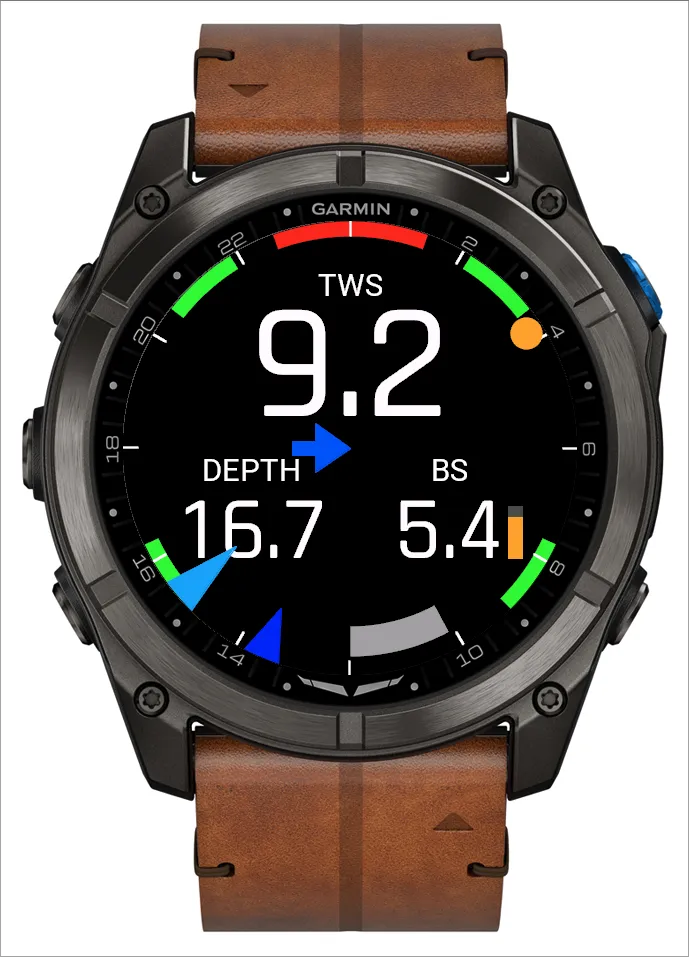
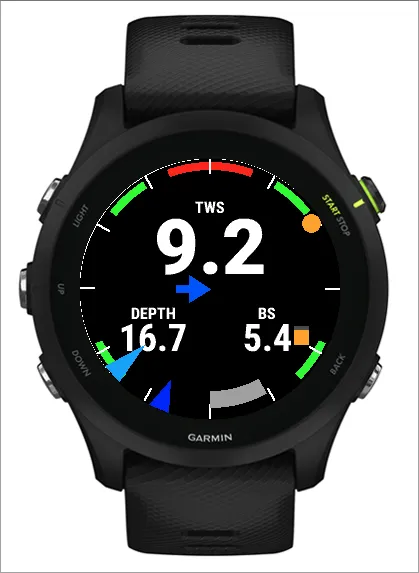
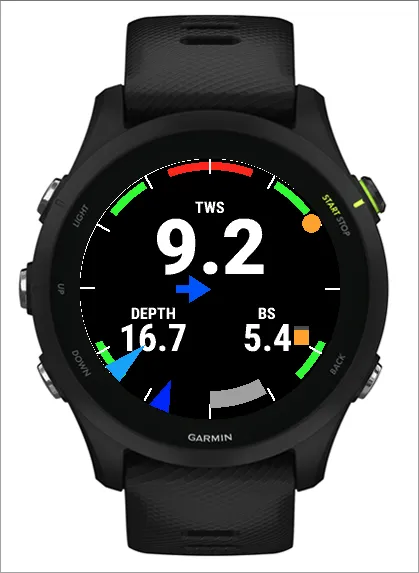
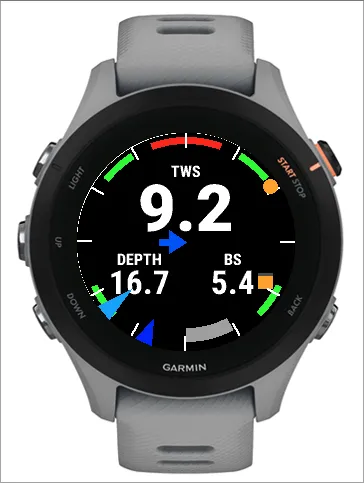
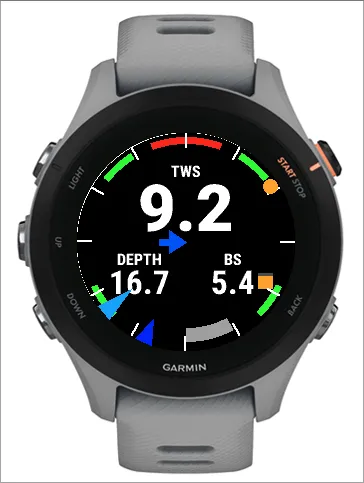
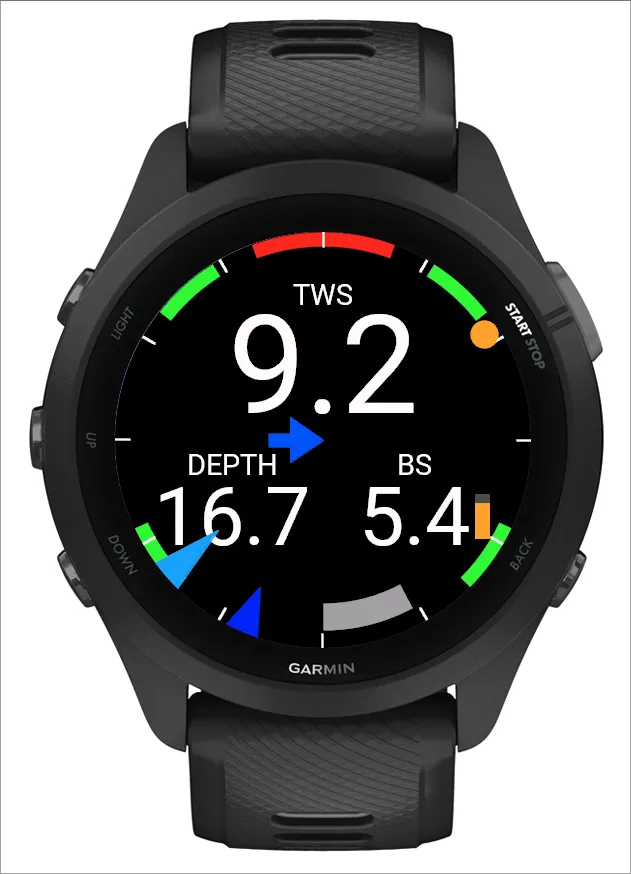
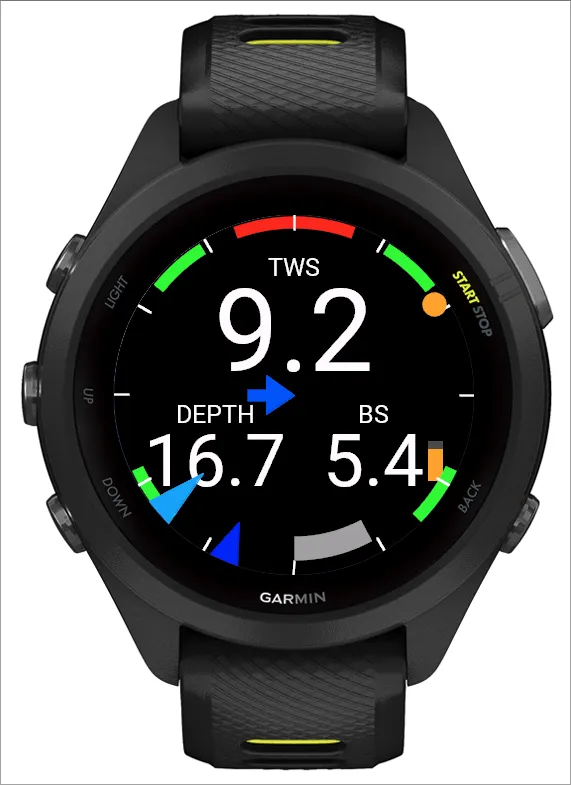
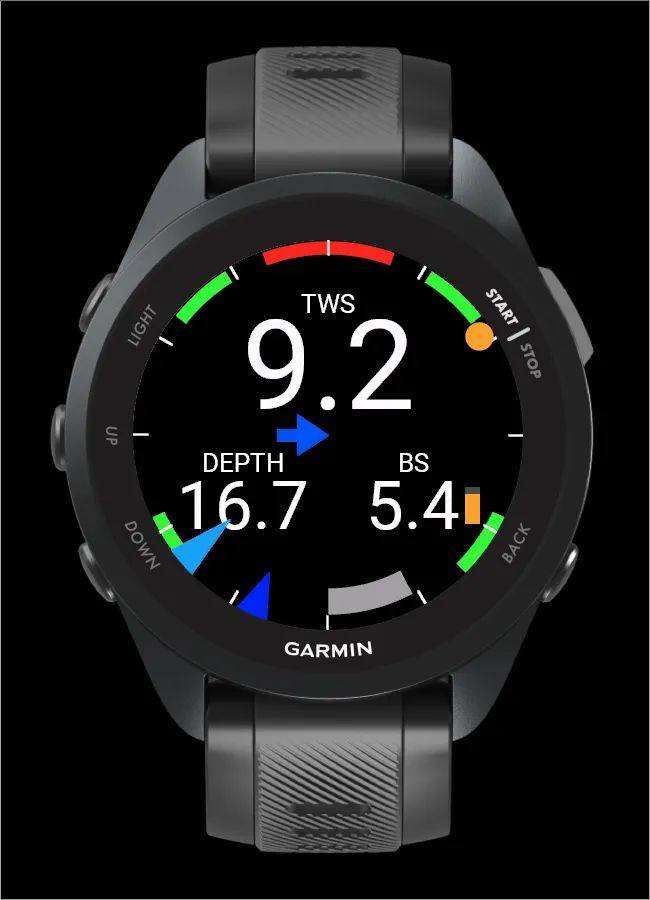
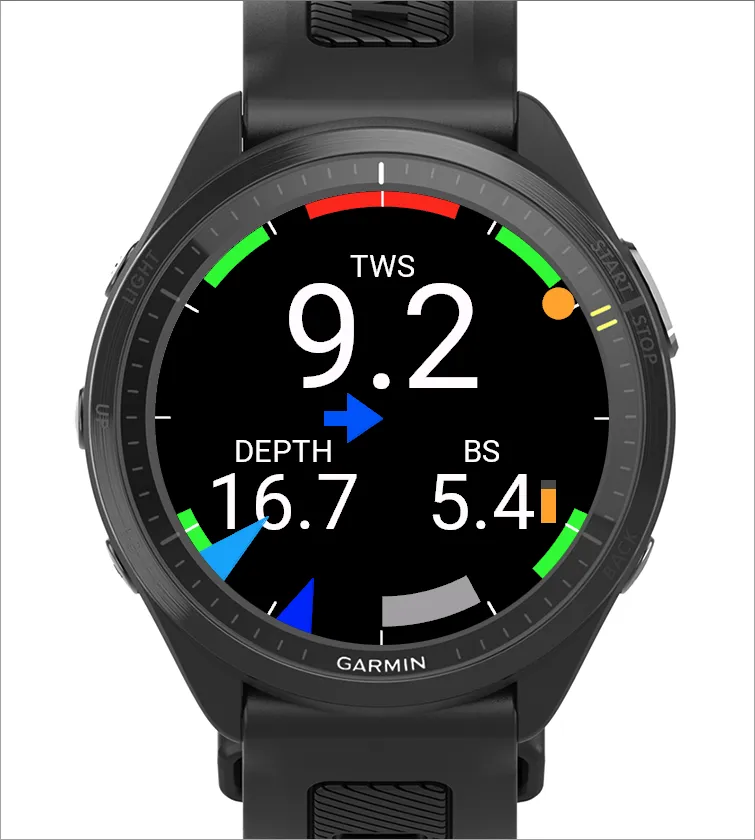
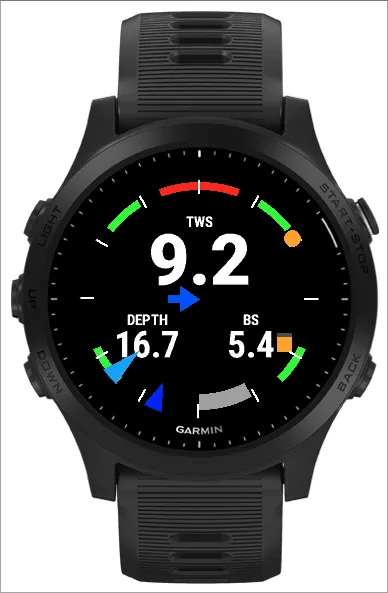
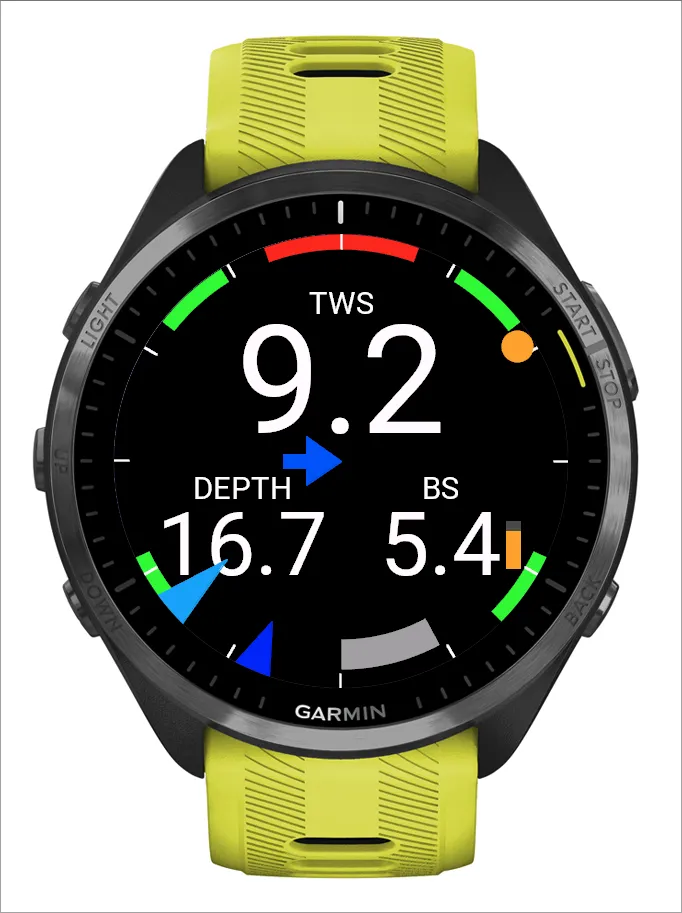
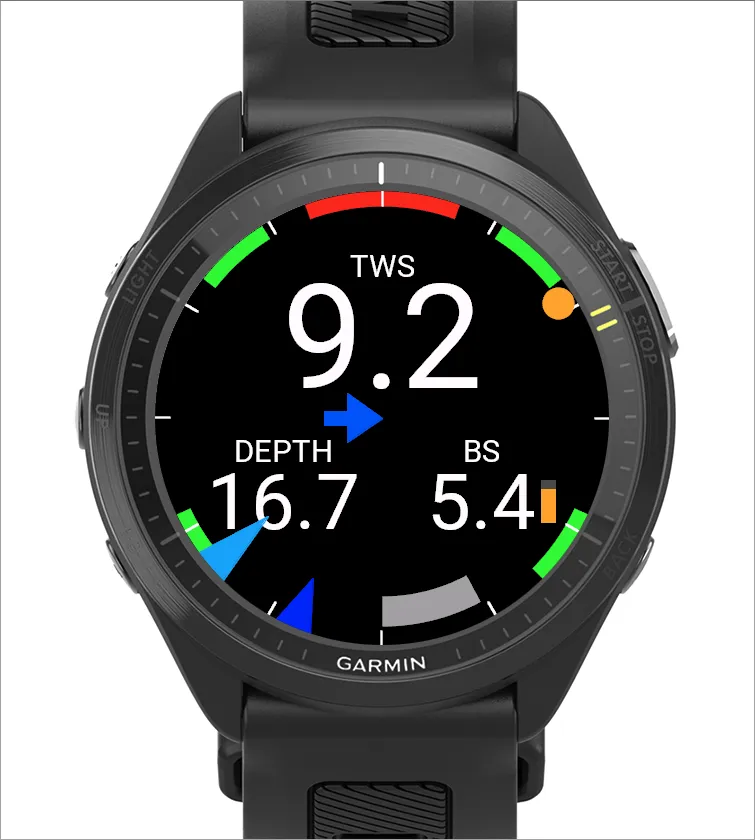
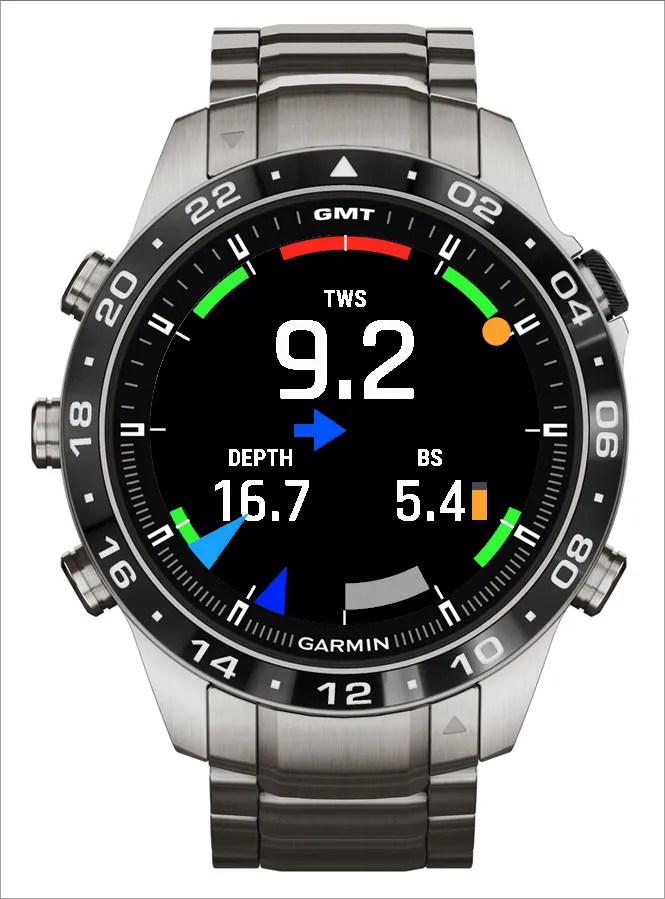
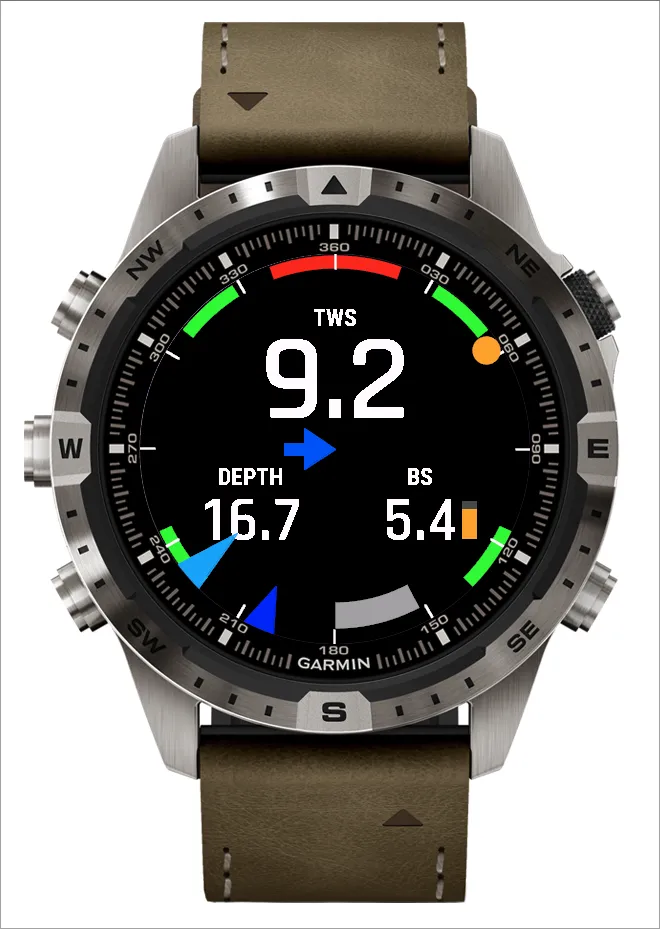
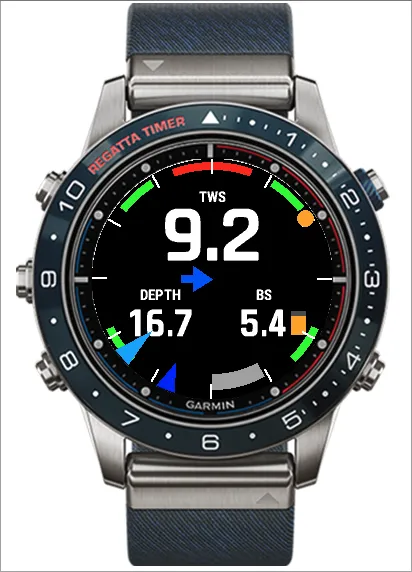
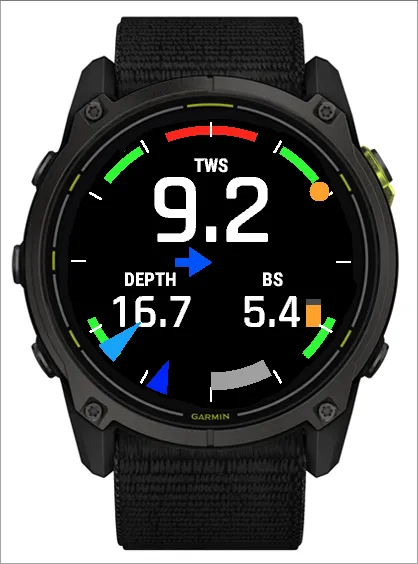
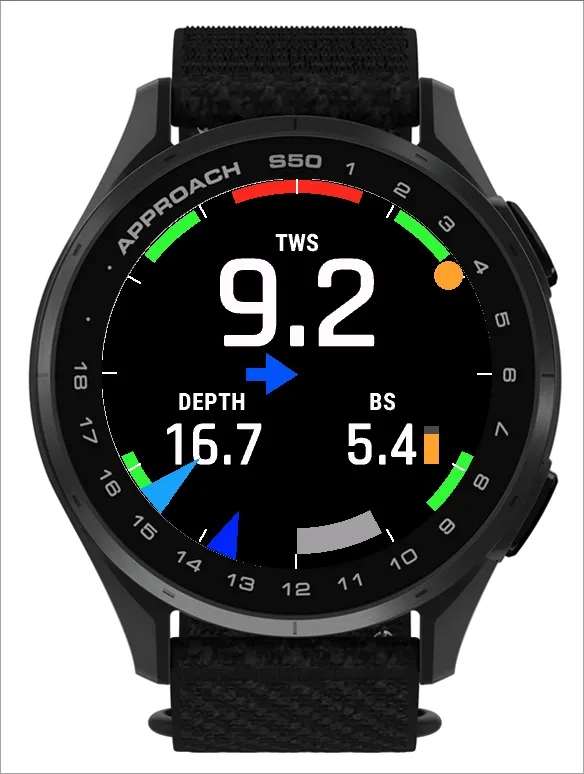
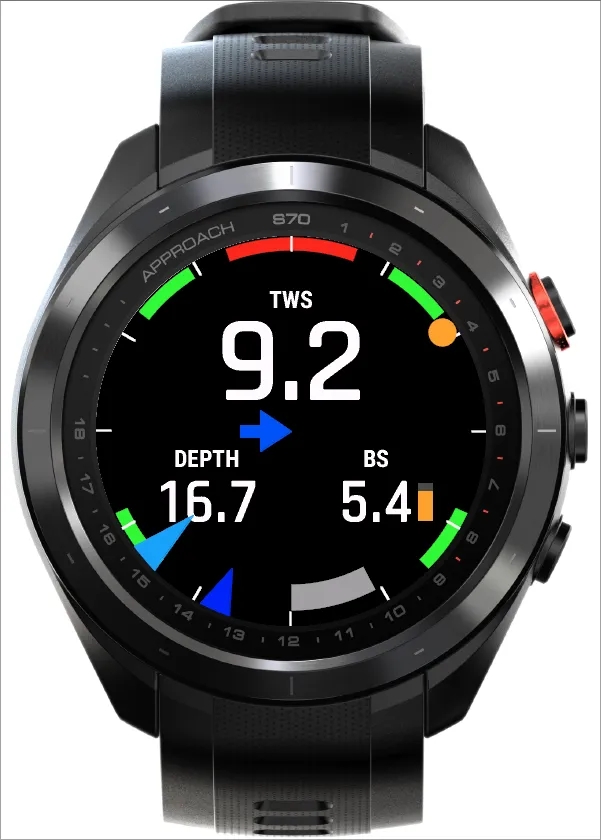
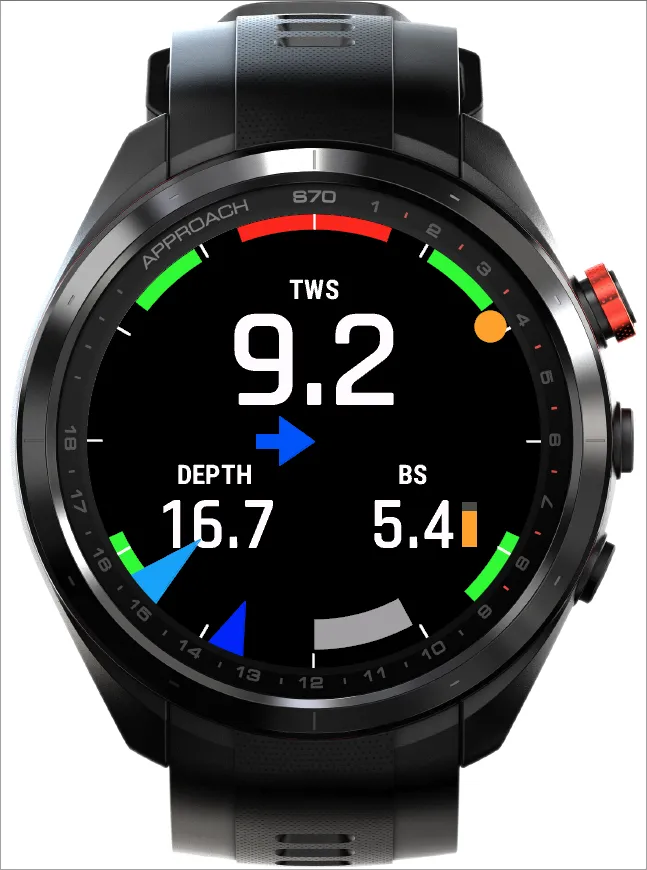
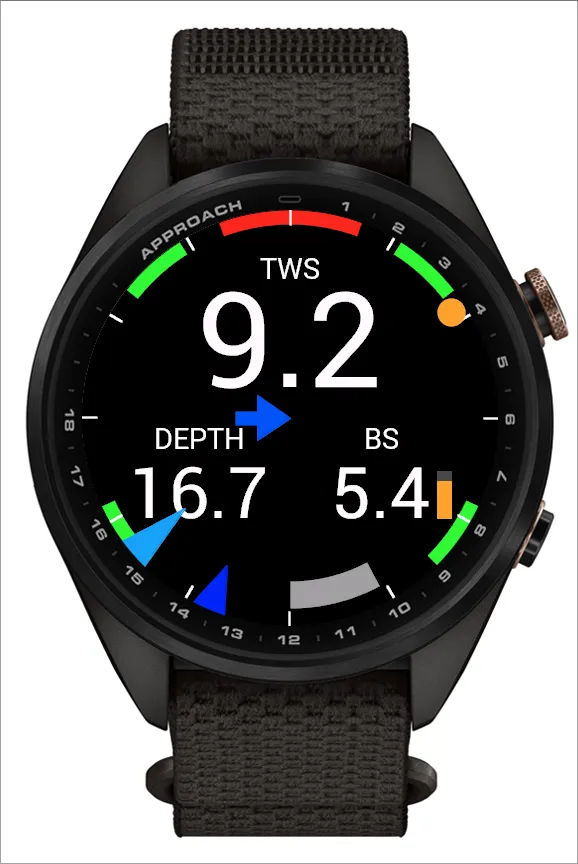
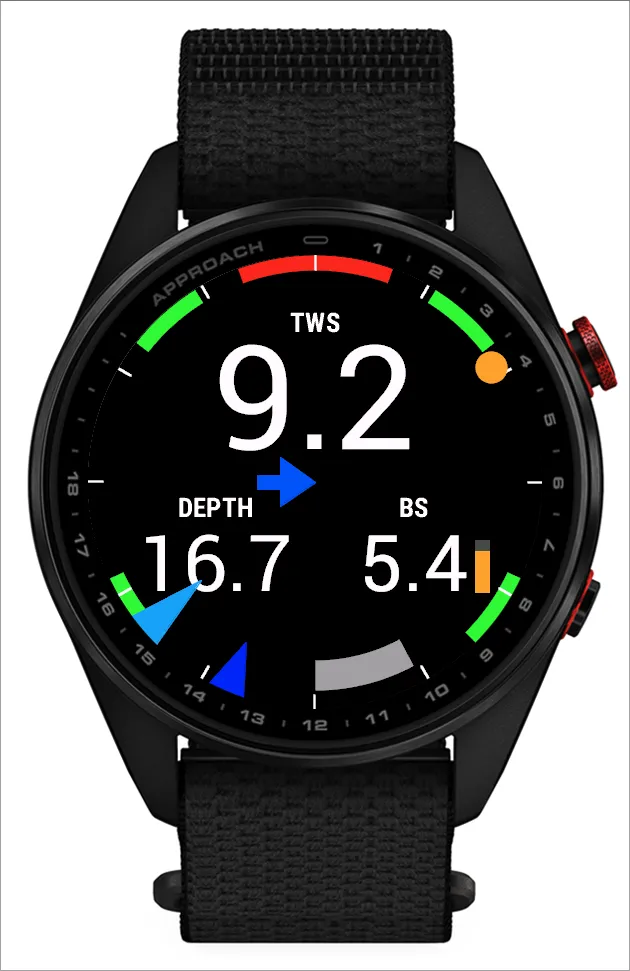
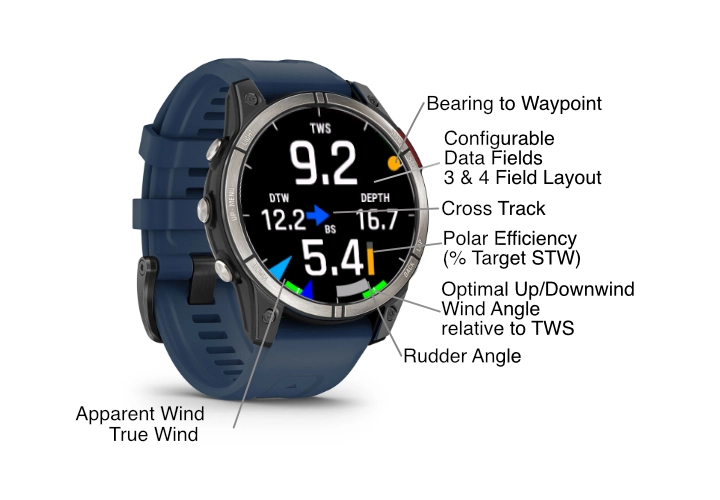
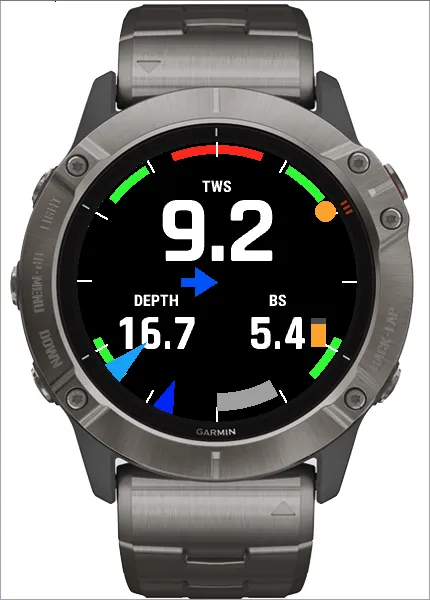
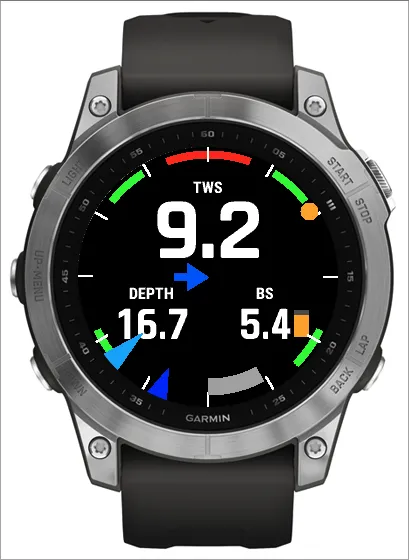
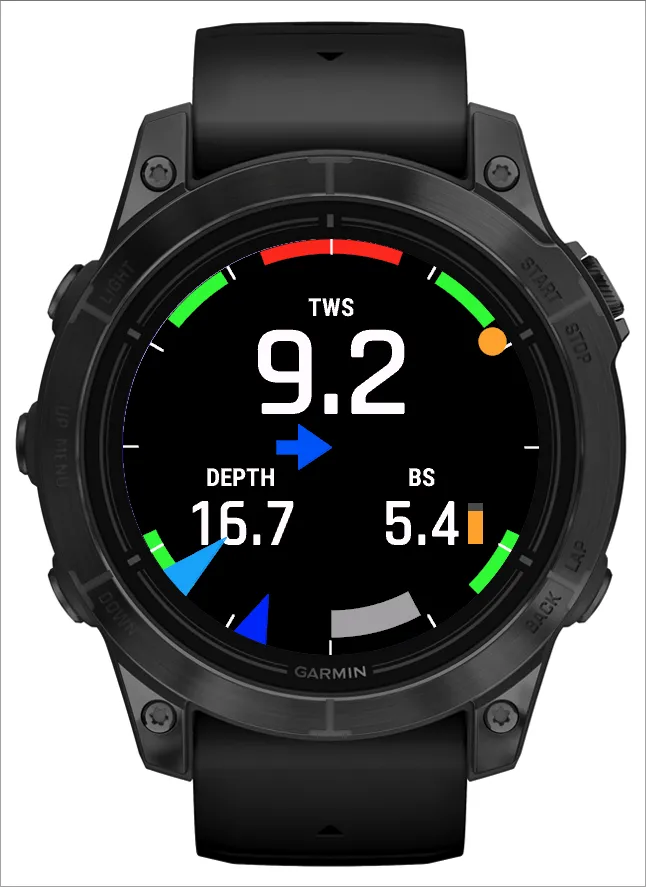
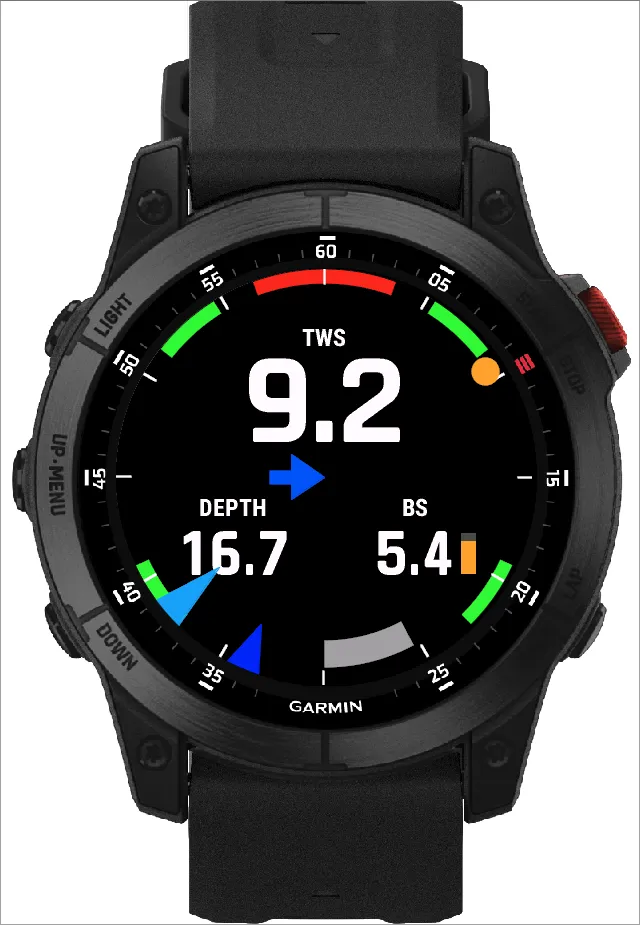
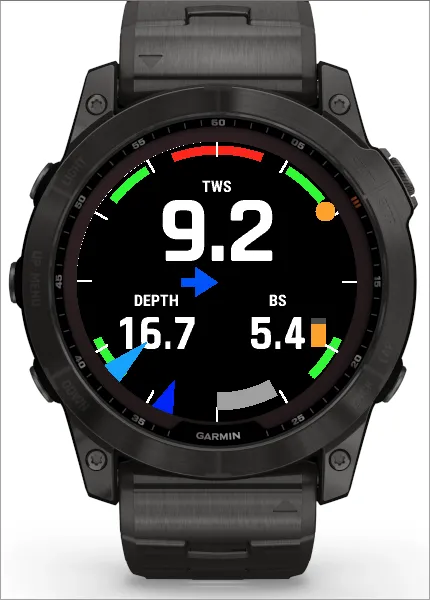
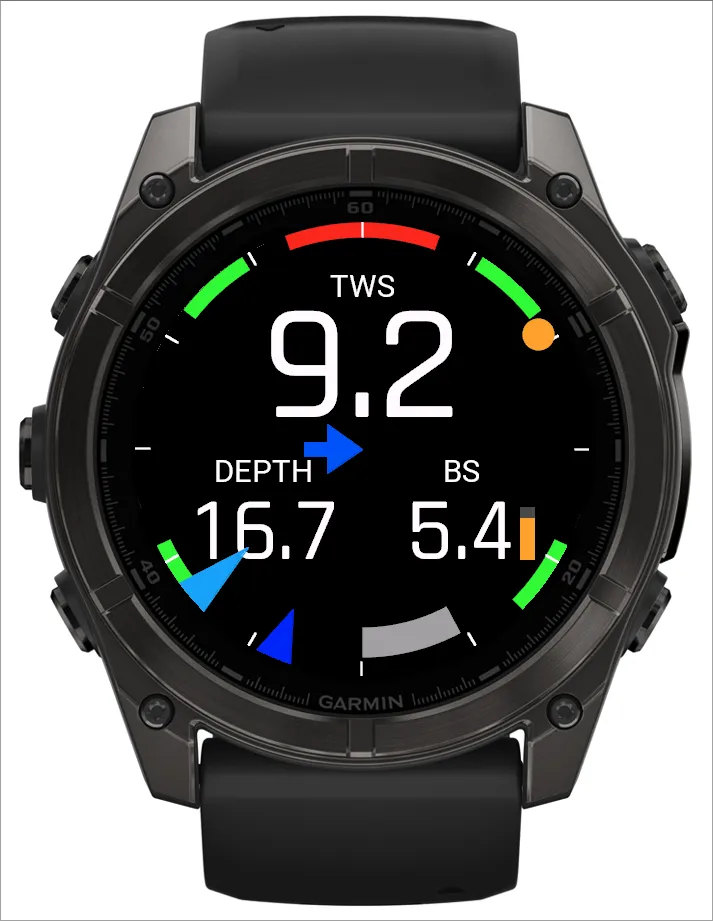
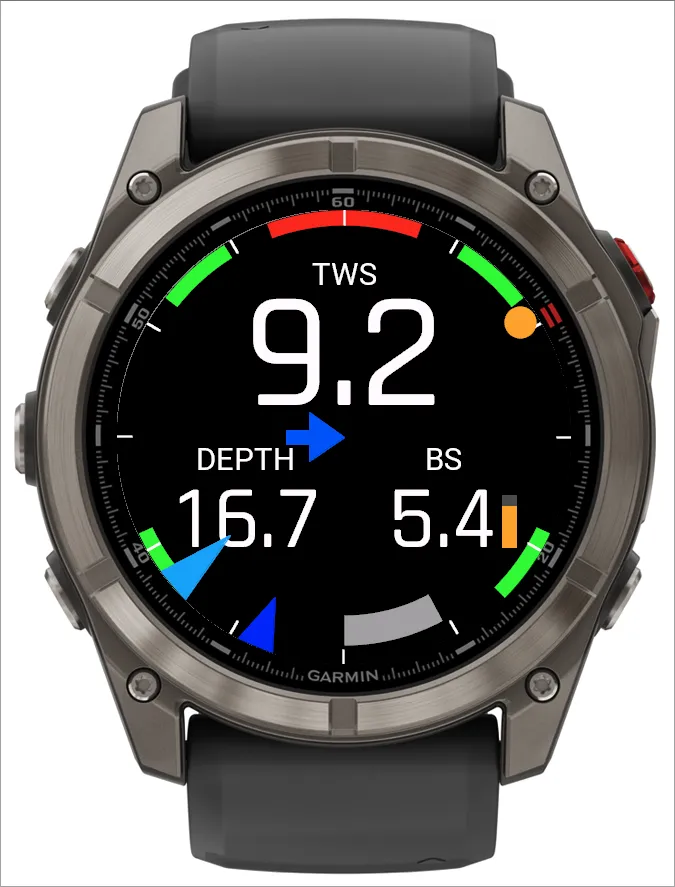
The outer bezel visually indicates True Wind Angle (TWA) with a dark blue arrow, Apparent Wind Angle (AWA) with a light blue arrow, Bearing with an orange dot, and Rudder Angle with a gray bow. Choose between clean 3-field or 4-field screen layouts to suit your preferred display density.
Dynamic green and red arc markers on the bezel instantly highlight the optimal wind direction zones based on your polar settings for optimising tacks and gybes at a glance. Easily monitor your Cross Track Error with a toggleable visual indicator.
Display COG, SOG, STW, TWS, AWS, TWA, AWA, TWD, BRG, DTW, TTW, XTE, VMG, VMC, HDG, Rudder Angle and Depth. Three or four individual configurable number fields plus the dynamic visual bezel.
Compare your boat speed (STW) against your vessel's target polar performance in real time directly on your Garmin watch. Instantly gauge sail performance, sail trim, and target speeds on every leg.
Adjust displayed fields, units, wind targets, and BLE bridge settings via the Garmin Connect IQ app or directly on compatible watch models. Configure and assign two distinct profiles tailored to different sailing or activity types.
The SailorData Bridge also runs standalone onboard gateway services that bridge Victron Bluetooth sensors to NMEA 2000 and stream NMEA telemetry over Wi-Fi to your chartplotters, tablets, and phones even when no Garmin watch is connected. Explore the Live Bridge Dashboard Demo in action.
Reads live data from Victron Energy devices — including SmartShunt, BMV-712 battery monitors, SmartSolar MPPT solar chargers, Orion-Tr Smart DC-DC converters, AC inverters, and Blue Smart chargers — via Bluetooth (BLE) and sends it directly to your NMEA 2000 (NMEA2000) network for display on any chartplotter.
Acts as a wireless NMEA to Wi-Fi bridge and gateway, streaming NMEA 2000 boat telemetry, GPS, wind, depth, and AIS over Wi-Fi (TCP) to navigation apps like Navionics, OpenCPN, Savvy Navvy, and iSailor on your tablet, phone, or laptop — completely independent of a Garmin watch.
Configure bridge settings, polar tables, NMEA to Wi-Fi routing, and Victron Energy devices or update firmware wirelessly over Wi-Fi via the built-in web portal — no cables or watch required.
Whether you race around the cans or cruise offshore, SailorData bridges the gap between your boat's NMEA 2000 backbone, your Garmin watch, and your wireless onboard electronics.
Turn your Garmin quatix, fēnix, epix, MARQ, or Forerunner into a full-featured wireless sailing instrument repeater. Unlike Garmin's proprietary Boat Data app—which requires a Garmin chartplotter or GNT 10 transceiver—the SailorData Garmin marine watch app connects via Bluetooth Low Energy to any B&G, Raymarine, Simrad, or Furuno NMEA 2000 network.
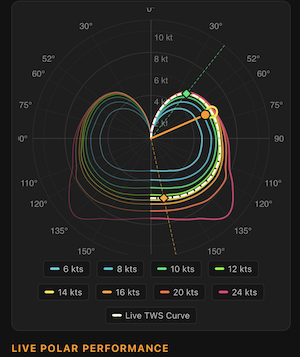
Maximize your sail performance on every upwind and downwind leg. Upload your sailboat's ORC or custom polar table to the bridge to see real-time polar efficiency (%), Speed Through Water (STW), True Wind Angle (TWA), Velocity Made Good (VMG), and tactical wind shift zones right on your wrist or in the live web dashboard.
Need an NMEA to Wi-Fi bridge or gateway for your iPad, tablet, or laptop? Enable the built-in TCP Wi-Fi router to broadcast live NMEA 2000 vessel telemetry, GPS position, wind, depth, heading, and AIS targets directly to Navionics, OpenCPN, Savvy Navvy, iSailor, and TimeZero without buying a separate marine Wi-Fi multiplexer.
Bridge your Victron Energy electrical system to your chartplotter without expensive VE.Can adapters. The SailorData Bridge reads encrypted Instant Readout BLE broadcasts from up to four Victron devices—including SmartShunt, BMV-712, SmartSolar MPPT, Orion-Tr Smart, and Blue Smart Chargers—and translates them into standard NMEA 2000 (NMEA2000) battery, solar, and charger PGNs.
Experience how the compact NMEA 2000 hardware bridge, real-time sail performance polars, and Garmin marine smartwatch integration blend seamlessly on board.
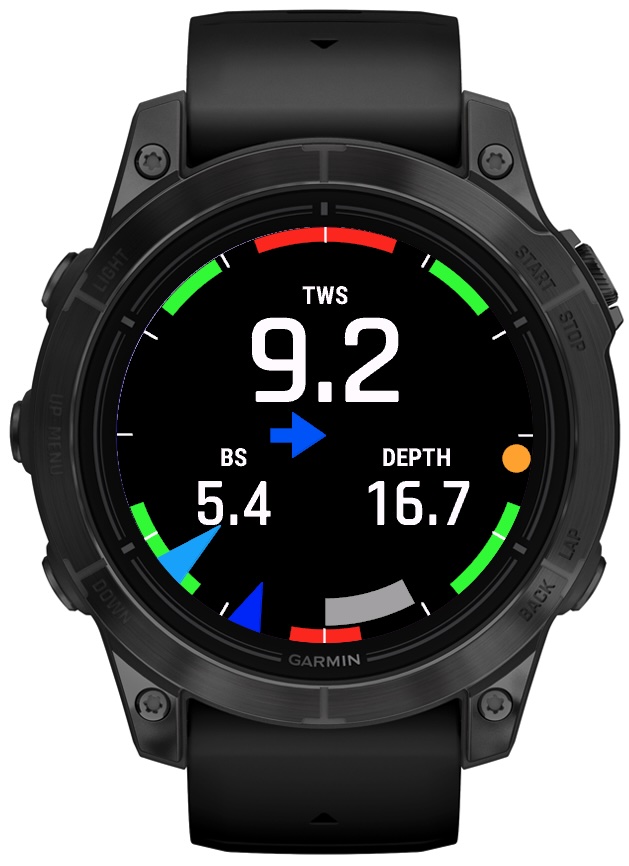 3-Fields
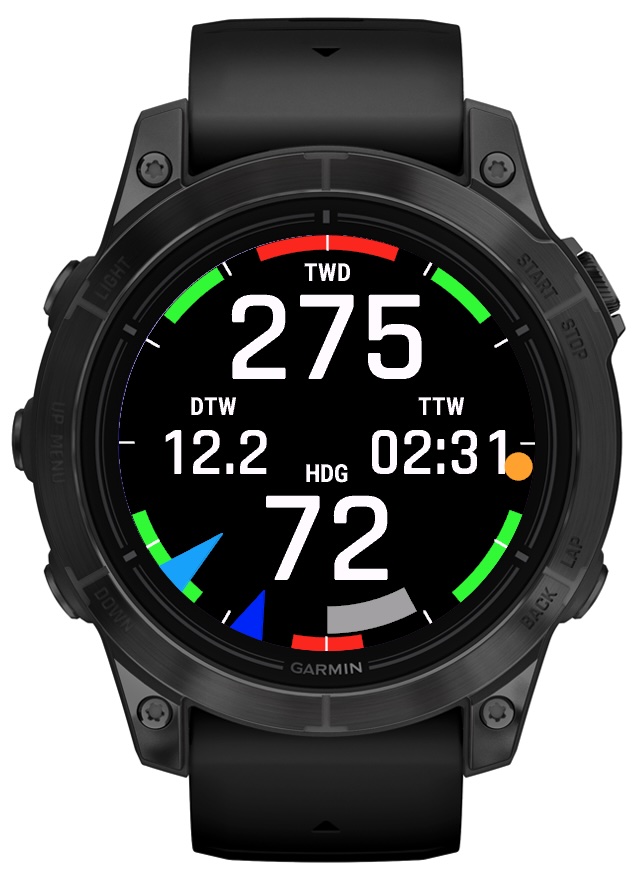 4-Fields Cross
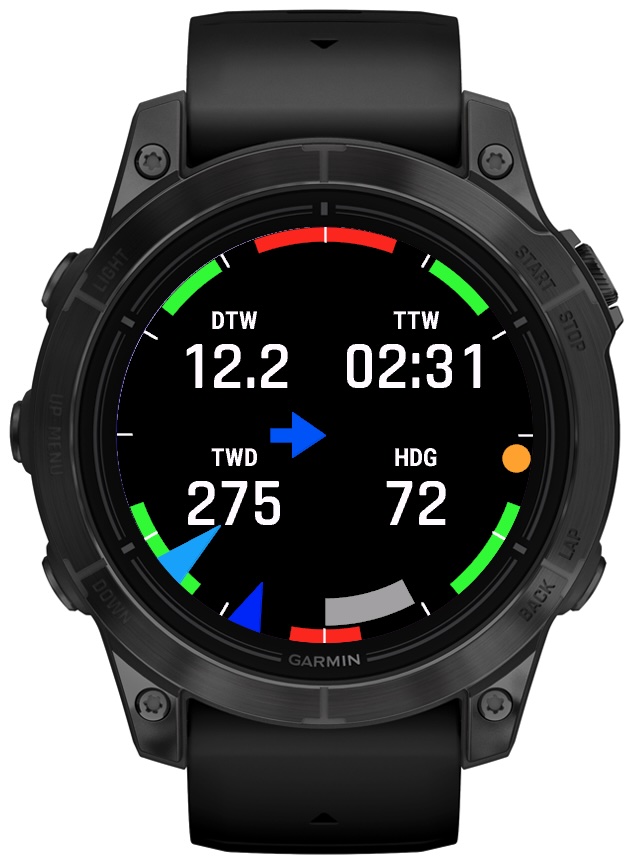 4-Fields Grid
The SailorData Garmin marine watch app supports a wide range of modern Garmin quatix, fēnix, epix, MARQ, Forerunner, D2, and Approach smartwatches.
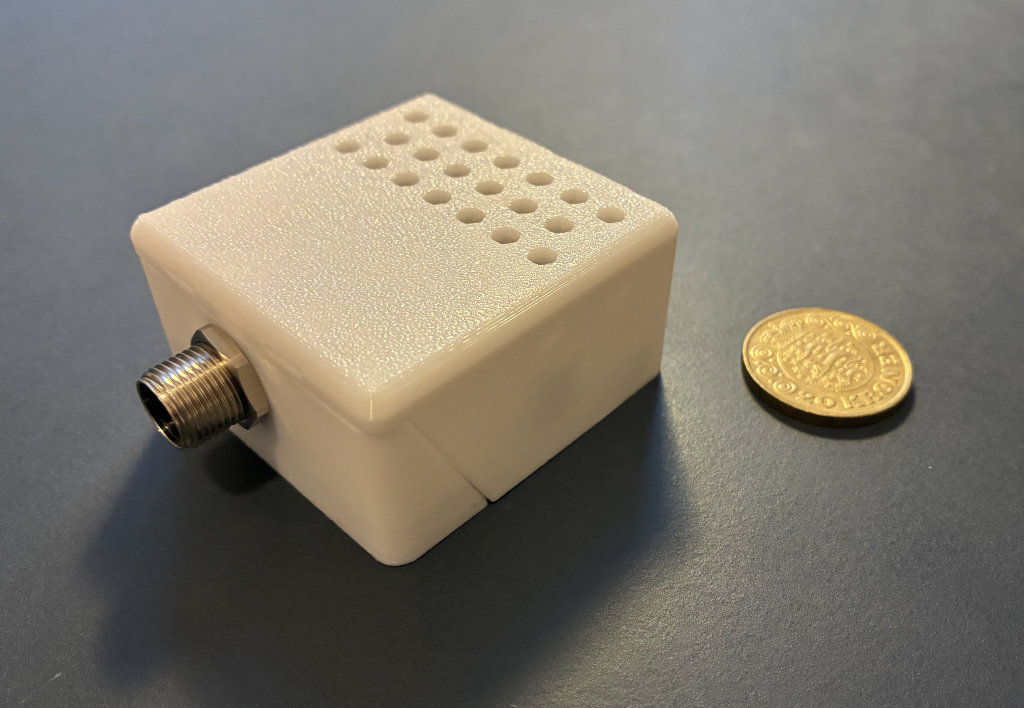
Translates your boat's NMEA 2000 (NMEA2000) network data for your Garmin watch over Bluetooth, acts as an NMEA to Wi-Fi gateway, and bridges Victron Energy BLE devices. Choose your path.
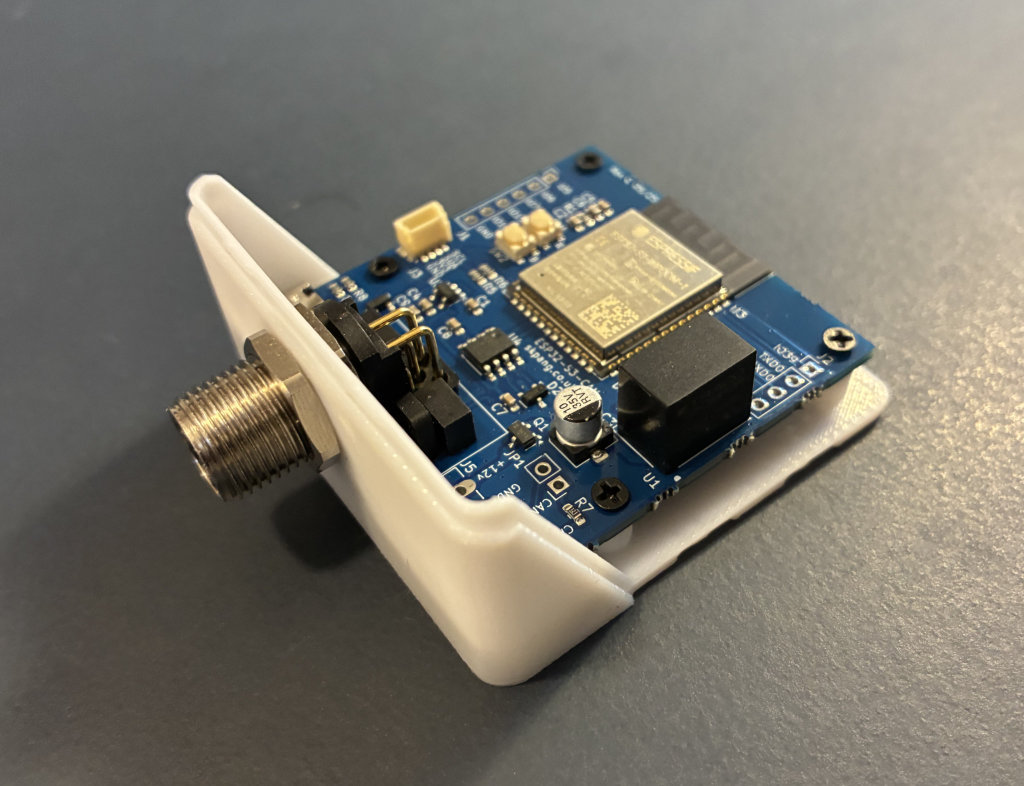
For the electronics-minded sailor. Purchase an ESP32-S3 CAN-Bus board with NMEA 2000 connector and flash the free firmware yourself.
Unlock advanced polar sail performance, NMEA 2000 to Wi-Fi bridge/gateway routing, and Victron to NMEA2000 monitoring on your DIY SailorData Bridge.
Fully assembled, tested, and housed in a fit-for-purpose marine enclosure. Plug directly into your NMEA 2000 backbone and it works immediately.
Everything you need to know to get up and running with SailorData.
SailorData supports a wide range of modern Garmin marine and multisport watches including: fēnix series (including 6S Pro, 6S Sapphire, 6S Pro Dual Power, 7 series, 8 series), epix (Gen 2) series, quatix series (including quatix 6X, quatix 6X Solar, quatix 6X Dual Power, quatix 7, 7 Pro, 7 Sapphire, 7X Solar, 8, 8 Pro), D2 Air X10, D2 Mach 1, D2 Mach 2 Pro, Approach S72 (43mm & 47mm), Approach S70 (42mm & 47mm), Approach S50, MARQ Aviator (Gen 2), MARQ Athlete (Gen 2) Carbon Edition, Forerunner 265, 265s, 570 (42 & 47mm), 945, 965, 970, tactix 7 series and tactix 8 AMOLED.
Phase 1 — Install the Data Field: Open the Garmin Connect IQ Store app on your smartphone. Search for "SailorData". Tap Download (you may need to accept permissions). Open the main Garmin Connect app and sync your watch to transfer the data field.
Phase 2 — Enable on your watch: Press the Start/Stop button to open the Activities list. Select the activity you want to customise (e.g. Sailing) but don't start the timer. Press and hold the Up/Menu button and select Settings → Data Screens → Add New. Select the 1-field layout box, scroll to Connect IQ, and choose SailorData. Press Back repeatedly to save.
Method 1 — Via Connect IQ Store app: Open the Connect IQ app → My Device → My Data Fields → SailorData → Settings. Adjust display, wind target, and NMEA2000 BLE bridge settings. Tap Save, then sync your watch in the Garmin Connect app.
Method 2 — On-watch settings menu: Go to the activity profile, press Up/Menu → Settings → Connect IQ Settings → SailorData. Note: Wind target and BLE bridge settings cannot be changed here, but you can check the firmware version of the bridge.
The three/four configurable number fields can show: COG (Course Over Ground), SOG (Speed Over Ground), STW (Speed Through Water, incl. polar performance relative to target speed), TWS (True Wind Speed), AWS (Apparent Wind Speed), TWA (True Wind Angle), AWA (Apparent Wind Angle), TWD (True Wind Direction), BRG (Bearing to waypoint), DTW (Distance To Waypoint), TTW (Time To Waypoint), XTE (Cross Track Error), VMG (Velocity Made Good), VMC (Velocity Made Good to Course), HDG (Heading), Depth, and Rudder Angle.
In addition, the dynamic visual bezel displays TWA (dark blue arrow), AWA (light blue arrow), BRG (orange dot), Rudder Angle (gray bow) and toggleable visual XTE indicator plus green and red tactical wind shift zone markers.
Profiles allow you to save different data screen layouts (such as "3-field / 4-field", "XTE Indicator on/off", or "selection of data fields") and switch between them easily.
To configure them, open the Connect IQ settings on your phone or watch, configure the display parameters under "Profile 1" or "Profile 2".
Then select the active profile in the ConnectIQ settings on your watch for the selcted Activity. You can assign the SailorData data field to munltiple Activities. Each Activity can have one of the two profiles assigned, so that you always have the right layout for your Activity.
A visual badge on the display shows you which profile is selected. The badge disapears as soon as you start the timer of the Activity.
There are two ways to switch between display layouts:
1. You can use the Lap button on your watch to cycle through available display layouts during an activity. This requires that you enable the feature in the Connect IQ app settings.
2. Alternatively, in the Connect IQ settings on your watch, you can quickly switch between two different display layouts for the same activity by using the profile switching functionality.
You can enable Offline Demo mode through the Connect IQ app settings on your phone. In the SailorData settings, toggle "Enable Offline Demo Mode" to true and save. Your watch will run a local simulation of speed, depth, and wind data without requiring a connection to the hardware bridge.
Below is an overview of all configurable settings available in the Garmin Connect IQ app for SailorData:
| Setting | Description |
|---|---|
| Profile 1 Settings | Configure the display layout, data fields, and XTE indicator for Profile 1. |
| Profile 2 Settings | Configure the display layout, data fields, and XTE indicator for Profile 2. |
| Use Lap button to change active profile | Enable the use of the Lap button to switch between different profiles. |
| Wind speed unit | knots, m/s, or beaufort |
| Depth unit | meter or feet |
| Target Upwind Angle | The angle at which the vessel should sail relative to the true wind direction. This setting defines where the green upwind arcs on the bezel will be displayed. The arc is 10 degrees +- of the entered value Setting the value to 0 means that the angle is dynamically adjusted based on the polar settings and actual TWS. |
| Target Downwind Angle | The angle at which the vessel should sail relative to the true wind direction. This setting defines where the green downwind arcs on the bezel will be displayed. The arc is 10 degrees +- of the entered value Setting the value to 0 means that the angle is dynamically adjusted based on the polar settings and actual TWS. |
| Enable OTA update mode of the SailorData Bridge | You need to have the SailorData datafield active on the watch, so that the watch can talk to the bridge and bring the bridge in update mode. Once you click save, the bridge will restart in update mode. Connect your phone or computer to the Wi-Fi hotspot of the bridge and upload a new firmware. |
| Enable web server on the SailorData Bridge | You need to have the SailorData datafield active on the watch, so that the watch can talk to the bridge and enable the web server. With the web server enabled, you can access the bridge's interface through a web browser to see live telemetry data, live polar chart, configure your polar and enable the NMEA to Wi-Fi router. |
| Profile Settings | |
| Display Layout | 3 Fields, 4 Fields (grid), 4 Fields (Cross) |
| Visual XTE | If the cross track error is within a range of +- 1NM, a blue arrow will be displayed pointing towards the direction you need to steer to get back on track. If the error is below 0.02NM, a green dot is shown in the middle. |
| Field 1, 2, 3, 4 | Select the available datafields to display in the selected layout. |
The SailorData Garmin application supports a wide range of real-time marine telemetry fields. To display these values on your wrist, your vessel's NMEA2000 network must have the corresponding physical sensors installed to broadcast the data to the bridge.
| Data Field / Metric | Speed Sensor (Paddlewheel) |
Wind Transducer (Masthead Unit) |
Depth Sounder |
Compass (Heading) |
GPS Chartplotter |
Rudder Sensor |
|---|---|---|---|---|---|---|
| STW (Speed Through Water) | ✔️ | — | — | — | — | — |
| AWA & AWS (Apparent Wind) | — | ✔️ | — | — | — | — |
| TWA & TWS & TWD (True Wind)¹ | ✔️ | ✔️ | — | (✔️) | — | — |
| Depth | — | — | ✔️ | — | — | — |
| HDG (Heading) | — | — | — | ✔️ | — | — |
| SOG & COG (GPS Metrics) | — | — | — | — | ✔️ | — |
| VMG & VMC (Velocity Made Good)² | ✔️ | ✔️ | — | — | ✔️ | — |
| BRG & DTW & TTW & XTE (Waypoint navigation) | — | — | — | — | ✔️ | — |
| Rudder Angle | — | — | — | — | — | ✔️ |
¹ True Wind (TWA/TWS) calculation is a vector calculation that requires both a Speed Through Water (STW) paddlewheel sensor and a Wind Sensor. If STW is unavailable, it falls back to using GPS Speed Over Ground (SOG), though this will not account for tidal currents. The Heading (Compass) sensor is only required for the True Wind Direction (TWD) calculation in addition to the other sensors required for True Wind calculations.
² VMG and VMC calculations depend on active waypoint navigation and route details received from your GPS / Chartplotter.
Installation is a simple plug-and-play process:
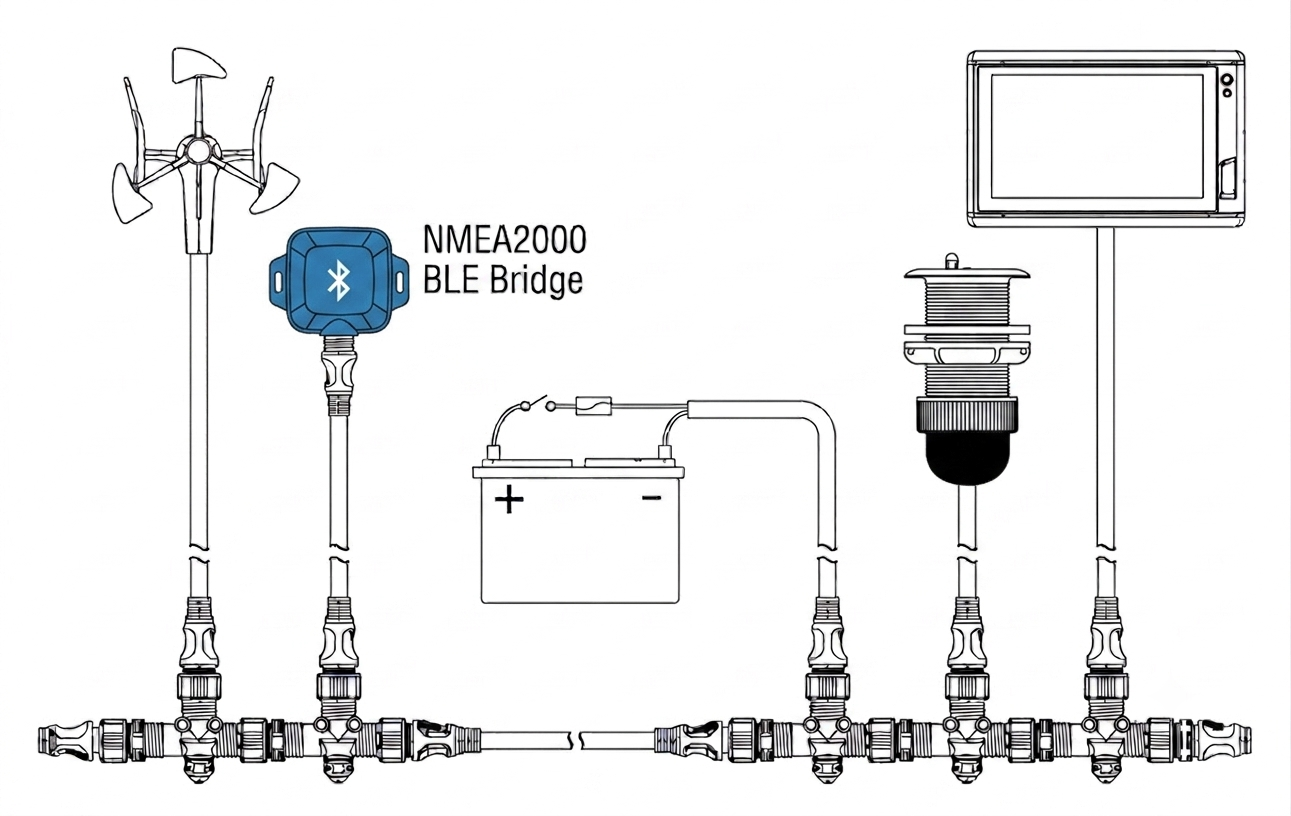
The bridge is powered directly by the NMEA 2000 network. As soon as it is plugged in it powers on and begins broadcasting. Open an activity on your Garmin marine watch with the SailorData field enabled — it will connect automatically and your live vessel data will appear.
Phase 1 — Download latest firmware: Download the latest firmware binary file for the SailorData Bridge to your phone or computer.
Phase 2 — Trigger update mode: With SailorData running on your watch, open the Connect IQ app on your phone and navigate to the SailorData settings. Enable "Enable OTA update of the SailorData Bridge" and tap Save. The data field will stop updating, confirming it has entered update mode. If the data field continues to update normally, tap the Save button in the mobile app a second time.
Another way of triggering update mode is to use an app like nRF Connect: Connect to "SailorData Bridge", find the characteristic which allows to Write (8ce53270-a68f-4577-b066-0bade7159b02), write the UTF8 string "OTA" and the bridge disconnects, confirming it has entered update mode.
The third way is to open the enclosure of the bridge and press the SW2 button for 1 second while the bridge is powered on. The red LED turns on once the bridge is in update mode.
Phase 3 — Upload firmware: The bridge will restart and broadcast a temporary Wi-Fi network:
Network name: SailorData-Bridge (firmware version prior 1.0 used 'N2K-BLE-BRG-UPDATE')
Password: sailordata (firmware version prior 1.0 used 'update')
Connect your phone or computer to this network. Open a browser and go to http://sailordata.local or http://192.168.4.1. Select your firmware file and confirm the upload. Do not close the browser or power off the bridge during upload — it restarts automatically when complete.
The bridge has a LED indicator that provides status information:
Receiving NMEA2000 data (flashing green) but no Watch is connected (flashing blue):

Receiving NMEA2000 data (flashing green) and a Watch is connected (solid blue):

As the LED's on the board are super close together, it is not always easy to distinguish between the different states.
Yes, all Pro features are active after the bridge is powered on. They will stop working after 10min, unless you enter a valid license key.
Connect to the web interface of the SailorData Bridge. On the Config tab, toggle the switch to enable the NMEA to Wi-Fi router / gateway mode (Pro license feature). The bridge translates NMEA 2000 (NMEA2000) PGNs into NMEA 0183 sentences and streams them over Wi-Fi (TCP/UDP) so marine navigation apps like Navionics Boating, OpenCPN, Savvy Navvy, and iSailor can receive live GPS, AIS, wind, depth, and speed data.
twa/tws;4;6;8;10;12;14;16;20;24
0;0;0;0;0;0;0;0;0;0
43.5;2.76;0;0;0;0;0;0;0;0
43.5;0;3.82;0;0;0;0;0;0;0
41.9;0;0;4.55;0;0;0;0;0;0
40;0;0;0;5;0;0;0;0;0
38.5;0;0;0;0;5.24;0;0;0;0
38.2;0;0;0;0;0;5.36;0;0;0
38;0;0;0;0;0;0;5.42;0;0
38.3;0;0;0;0;0;0;0;5.48;0
39.7;0;0;0;0;0;0;0;0;5.5
52;3.09;4.23;5.06;5.54;5.8;5.93;6;6.06;6.06
60;3.3;4.45;5.26;5.7;5.95;6.1;6.18;6.26;6.28
75;3.42;4.59;5.39;5.84;6.11;6.3;6.44;6.59;6.66
90;3.49;4.74;5.61;6.04;6.27;6.39;6.59;6.9;7.11
110;3.51;4.75;5.63;6.12;6.46;6.75;6.98;7.38;7.76
120;3.33;4.57;5.48;6.03;6.41;6.76;7.09;7.91;8.76
135;2.91;4.06;5.01;5.75;6.18;6.54;6.9;7.82;10.09
150;2.39;3.46;4.43;5.25;5.85;6.23;6.57;7.29;8.62
147.8;2.45;0;0;0;0;0;0;0;0
147.8;0;3.55;0;0;0;0;0;0;0
152.3;0;0;4.35;0;0;0;0;0;0
155.2;0;0;0;5.05;0;0;0;0;0
163;0;0;0;0;5.48;0;0;0;0
170.9;0;0;0;0;0;5.8;0;0;0
See an interactive demo here
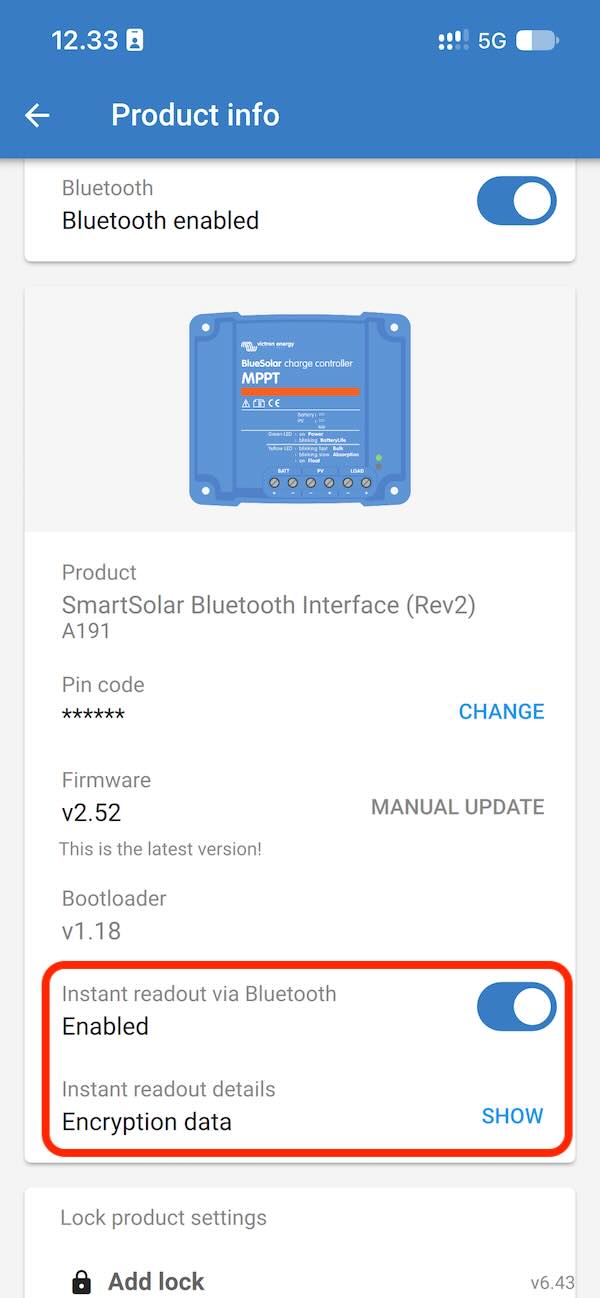
Via the web interface of the SailorData Bridge, you can enable Victron Energy support (Victron to NMEA 2000 / NMEA2000). This allows the bridge to read data from Victron Energy devices via Bluetooth (BLE) Instant Readout and send it over the NMEA 2000 network to your chartplotters. The following data can be read from Victron Energy devices:
You can configure up to 4 Victron devices. Scan nearby Victron devices will list nearby devices which you can add to the bridge. You will need to enter the respective encryption key for each device. You can find the encryption key in VictronConnect → Settings → Product Info → Instant readout via Bluetooth.
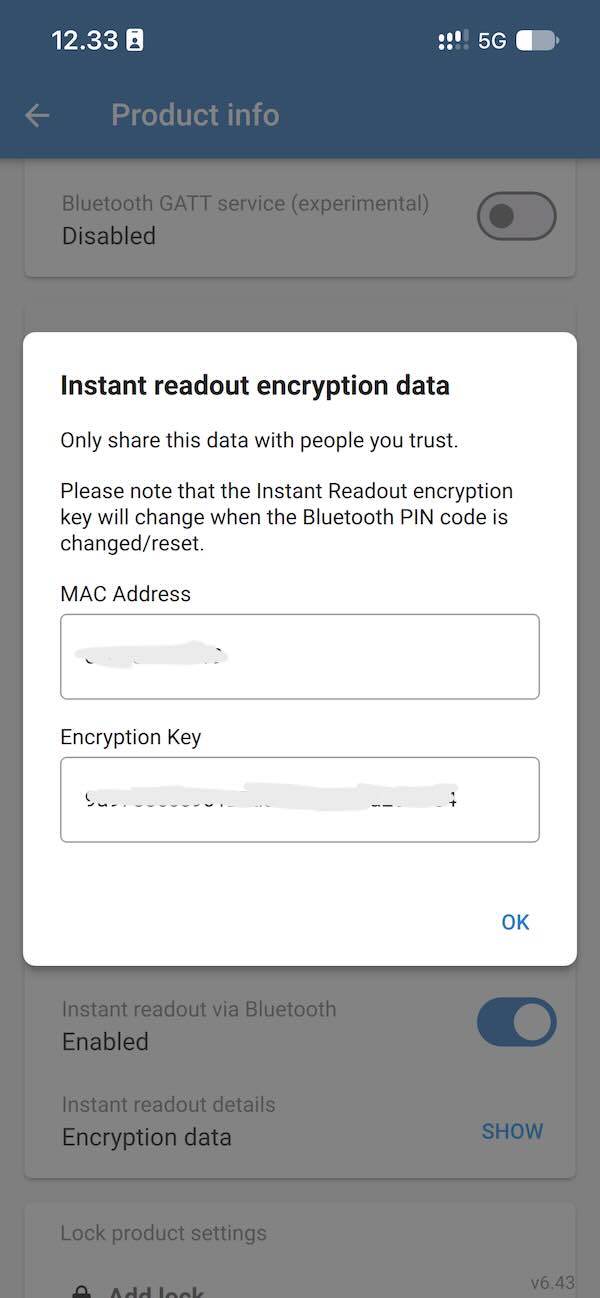
See an interactive demo here
Step 1: Enable web server With SailorData running on your watch, open the Connect IQ app on your phone and navigate to the SailorData settings. Enable "Enable web server on the SailorData Bridge" and tap Save.
Step 2: Connect to the Bridge The bridge will act now as a Wi-Fi hotspot:
Network name: SailorData-Bridge
Password: sailordata
Connect your phone or computer to this network. Open a browser and go to http://sailordata.local or http://192.168.4.1. You can then use the web interface to monitor live NMEA2000 data from the NMEA2000 network, see real-time polar performance data, enable the NMEA to Wi-Fi router and/or enable the simulator.
See an interactive demo here
When you open the enclosure, you will find two buttons:
In case you don't have access to a boat with NMEA2000 data, you can use the built-in simulator of the SailorData bridge to generate test data.
Step 1: Enable Live Monitor With SailorData running on your watch, open the Connect IQ app on your phone and navigate to the SailorData settings. Enable "Enable web server on the SailorData Bridge" and tap Save.
Step 2: Connect to the Bridge The bridge will act now as a Wi-Fi hotspot:
Network name: SailorData-Bridge
Password: sailordata
Connect your phone or computer to this network. Open a browser and go to http://sailordata.local or http://192.168.4.1. You can then use the web interface to monitor live NMEA2000 data from the NMEA2000 network and/or enable the simulator.
Step 3: Enable Simulator In the web interface, click the "Simulate NMEA2000" switch. The bridge will now generate simulated NMEA2000 data and broadcast it to your watch. It will stop processing real NMEA2000 data from the NMEA2000 network.
The bridge uses protocols and connections designed to be compatible with the NMEA2000® standard, however it is not formally certified by the National Marine Electronics Association (NMEA). "NMEA2000" is used solely to describe technical compatibility.
Because this device lacks formal NMEA2000 certification, its use within any marine network is at the user's own risk. I accept no liability for network disruptions, data errors, or damage to other connected electronics. By installing the device you acknowledge this and accept full responsibility.
The sailor and developer behind SailTech and SailorData.

Sailor • Maker • Denmark
Hey there! I’m a passionate sailor who loves to nerd out with tech. When I'm not on the water, you'll find me tinkering with BLE gateways, custom Garmin screens, and marine software to make navigation smoother for everyone.
Carsten Horst
Order a pre-assembled bridge unit, ask a technical question, or get help with your DIY build.